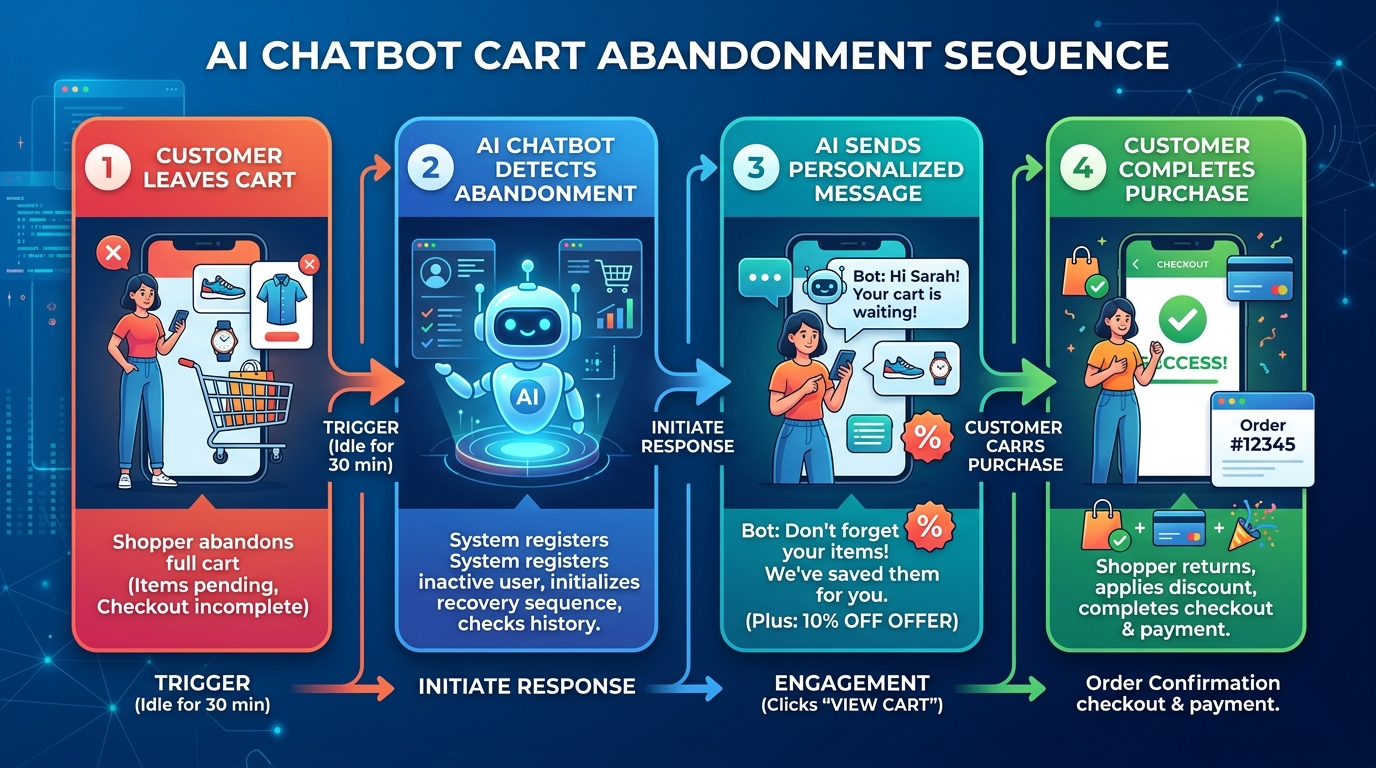
Installing a Shopify chatbot app takes about five minutes. Making it actually answer questions correctly, sound like your brand, and know when to hand a frustrated customer off to a real person takes considerably longer — and that gap is exactly where most Shopify stores end up disappointed with a tool that looked great in the App Store listing. This is a walkthrough of the setup itself: what to configure, in what order, and where stores most commonly get it wrong.
Setting up an AI chatbot for a Shopify store involves installing an app from the Shopify App Store, connecting it to your live product catalog and order data, adding custom knowledge like FAQs and return policies, configuring when it should escalate to a human, setting up cart-abandonment triggers, and testing thoroughly before launch. Shopify doesn’t build a full AI chatbot natively into the platform — its own tools (Shopify Inbox, Shopify Magic) offer basic AI-assisted messaging, but genuine automated chatbot functionality comes from a third-party app.
Worth knowing before installing anything: Shopify doesn’t offer a native, fully automated AI chatbot builder as part of the core platform. Shopify Inbox and Shopify Magic provide AI-assisted reply suggestions for merchants managing conversations themselves, but a chatbot that independently answers customer questions, recommends products, and recovers abandoned carts requires a third-party app from the Shopify App Store. That’s not a limitation to work around — it’s simply where to expect to start.
| Setup Step | Most Common Mistake |
|---|---|
| Catalog sync | Sync lapses unnoticed, leading to outdated stock answers — the single most common source of chatbot errors |
| Escalation rules | Left at default settings, so the bot keeps guessing instead of handing off a frustrated customer |
| Testing | Only testing friendly, simple questions instead of edge cases like out-of-stock items or complaints |
| Widget placement | Bottom-right positioning conflicting with Shopify’s own on-page widgets on mobile |
| Cart recovery triggers | Left unconfigured entirely, leaving the highest-ROI feature of the whole setup unused |
Picking a chatbot app from a list is the easy part. Configuring it correctly — sync, escalation, testing, ongoing monitoring — is where most Shopify stores run out of time. High Dreams LLC handles the full setup, not just the install.
Catalog sync, escalation rules, and brand voice set up correctly from day one, not left on default settings.
Edge cases tested before launch — out-of-stock items, complaints, multi-item orders — not just a friendly demo conversation.
Transcript review and sync health checks after launch, catching drift before it costs you a sale.
Explore related services: full AI chatbot development, e-commerce management for Shopify and marketplace sellers, and AI workflow agents for connecting chatbot data to your broader operations.
Get a free consultation on catalog sync, escalation logic, and cart recovery setup — configured properly from day one.
Get Hired View Our ServicesDoes Shopify have a built-in AI chatbot?
Not a fully automated one. Shopify’s native tools, Shopify Inbox and Shopify Magic, provide AI-assisted reply suggestions for merchants managing conversations themselves, but genuine automated chatbot functionality — independently answering questions and recovering carts — requires a third-party app from the Shopify App Store.
How long does it actually take to set up a Shopify AI chatbot?
Installing and connecting an app typically takes five to fifteen minutes. Configuring it properly — custom knowledge, escalation rules, cart recovery triggers, and thorough testing — realistically takes longer, and skipping that configuration work is the most common reason chatbots underperform after launch.
What’s the most common reason a Shopify chatbot gives wrong answers?
A lapsed catalog sync. Most errors trace back to outdated product, pricing, or inventory data rather than a fundamental flaw in the chatbot itself — confirming the sync schedule is actually running is one of the highest-value checks after launch.
How much cart abandonment revenue can a chatbot actually recover?
Estimates vary by store and implementation, but a well-configured recovery flow is commonly cited as recapturing roughly 15–25% of abandoned carts, often outperforming email-only recovery campaigns in response rate given how immediately it can engage a shopper.
Should the chatbot be tested before going live?
Yes, and specifically with real edge cases — an out-of-stock item, an angry complaint, a multi-item order — not just a friendly demo conversation. Preview mode testing is where most configuration mistakes get caught before customers ever see them.
Sources: Alhena, “How to Set Up a Shopify AI Chatbot: 6-Step Guide (2026)” · AIAgentsKit, “Build AI Chatbot for Shopify Stores: Complete Guide (2026)” · Conferbot, “Add AI Chatbot to Shopify Store (2026 Guide)” · IllumiChat, “Shopify Chatbot Integration: A Step-by-Step Guide” (citing Shopify Community discussion on native chatbot capabilities) · EasyApps Ecommerce, “Shopify AI Chatbot Setup Guide: Automate Customer Support in 2026” · Flyweight, “How to Add a Chatbot to Shopify.”